Editor’s Note: This post is written by a member of LTV’s sponsored content team, The Leisure Explorers. Do you own a Leisure Travel Van and enjoy writing? Learn more about joining the team.
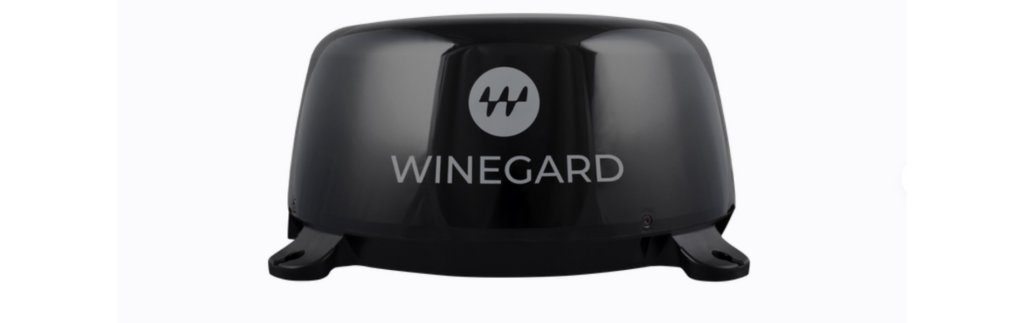
The Winegard ConnecT 2.0+ antenna (model WF2-95B) that came with your Leisure Travel Van can save you money, extend your cellular Internet and over-the-air (OTA) TV and radio reception, and keep you connected during emergencies. Every LTV made since 2019 has this antenna on the roof. Many owners scoff at this antenna because setup can be annoying and seems like a pointless exercise.
Here’s the good news. There are approaches to setup that always succeed—if you follow a few simple steps and know which directions in the Winegard manual to ignore. Here’s more news: you can upgrade this antenna to a 5G version—a direct swapout, but you’ll lose OTA service if you do.
What This Antenna Does for You
You’ll save money on your mobile phone bill. With a separate data card in your Winegard antenna (we use a $55/month plan from T-Mobile for 100 GB of data service), your emails, web browsing, and messages travel through the SIM card in the antenna rather than the SIM card in your mobile phone. By using this approach to cellular communications, you’ll lower data use on your mobile phone plan — data that will be available for you when you’re away from your LTV.
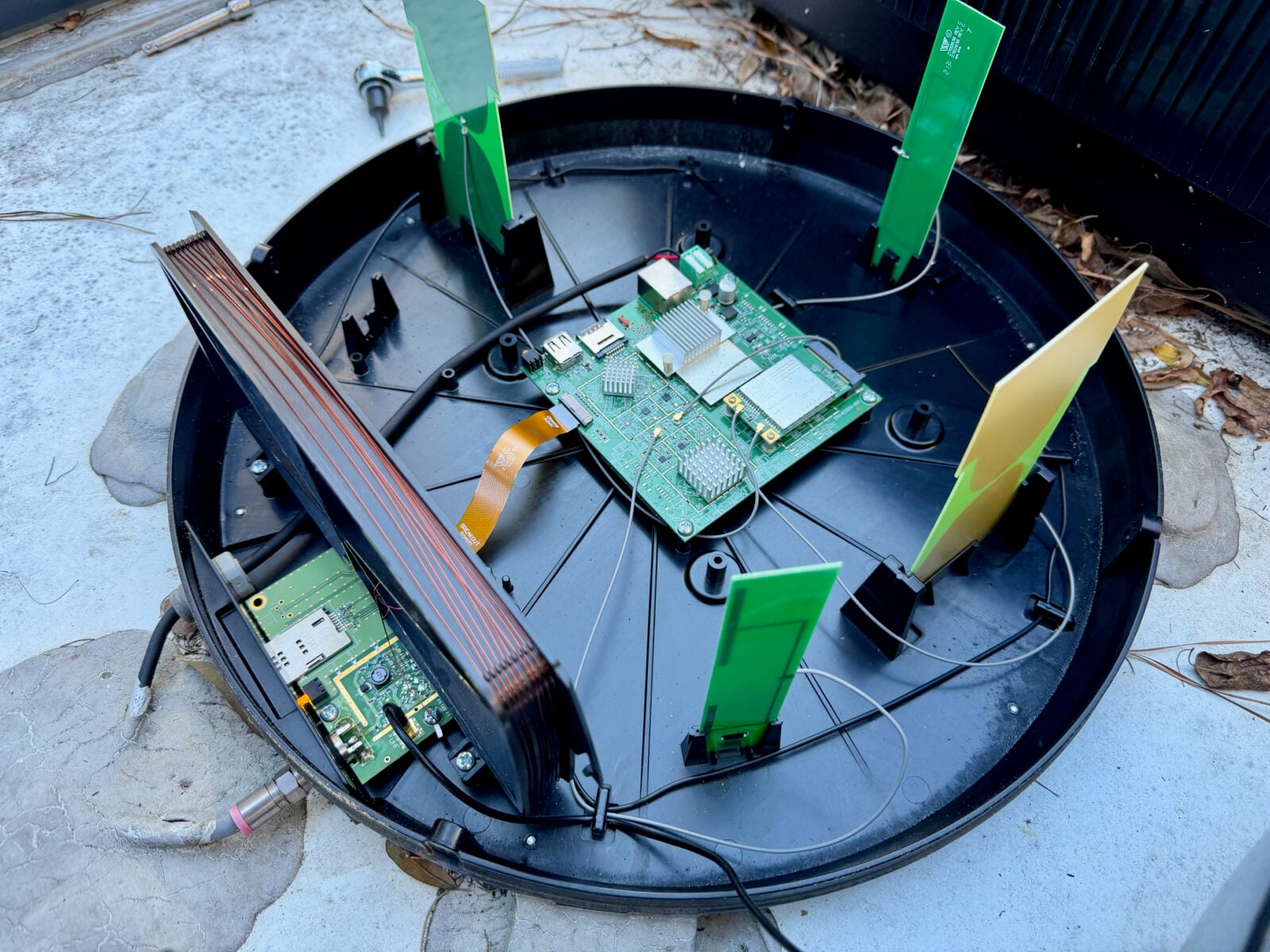
You’ll get better reception. The antenna on your roof catches signals far better than your phone or router inside your LTV. A protective radome covers the antenna on the roof. There are no wires to connect or equipment to set up and take down. For OTA service, this antenna will pick up broadcast signals from 55 miles away.
You’ll stay informed during emergencies. When cellular, Internet or satellite services go down during storms or other emergencies, this antenna can receive OTA television and radio broadcasts—your connection to local news and emergency information.
You’ll connect to Wi-Fi and cable networks. At campgrounds or other locations that offer Wi-Fi service, this antenna can pick up signals that your phone or laptop might miss because the antenna is on the roof. Also, an external RG-6 port in the service bay connects to the RG-6 port on the Winegard power panel plate. You can connect to local cable networks via the external port and connect the internal port to your TV to watch local cable channels.
You can get high speeds. This antenna can handle 150 megabits per second downloads on the cellular side of communications and up to 450 megabits per second on the Wi-Fi side of networks. If you don’t get these speeds, a likely cause is a weak transmission source or signal interface by trees, buildings or other obstacles.
A Simple Setup: Step by Step
Important: Do not use the Winegard apps. They don’t work with newer mobile phones or tablets. Instead, use any web browser on a laptop computer. You can also use a phone or tablet browser, but a laptop is easier.
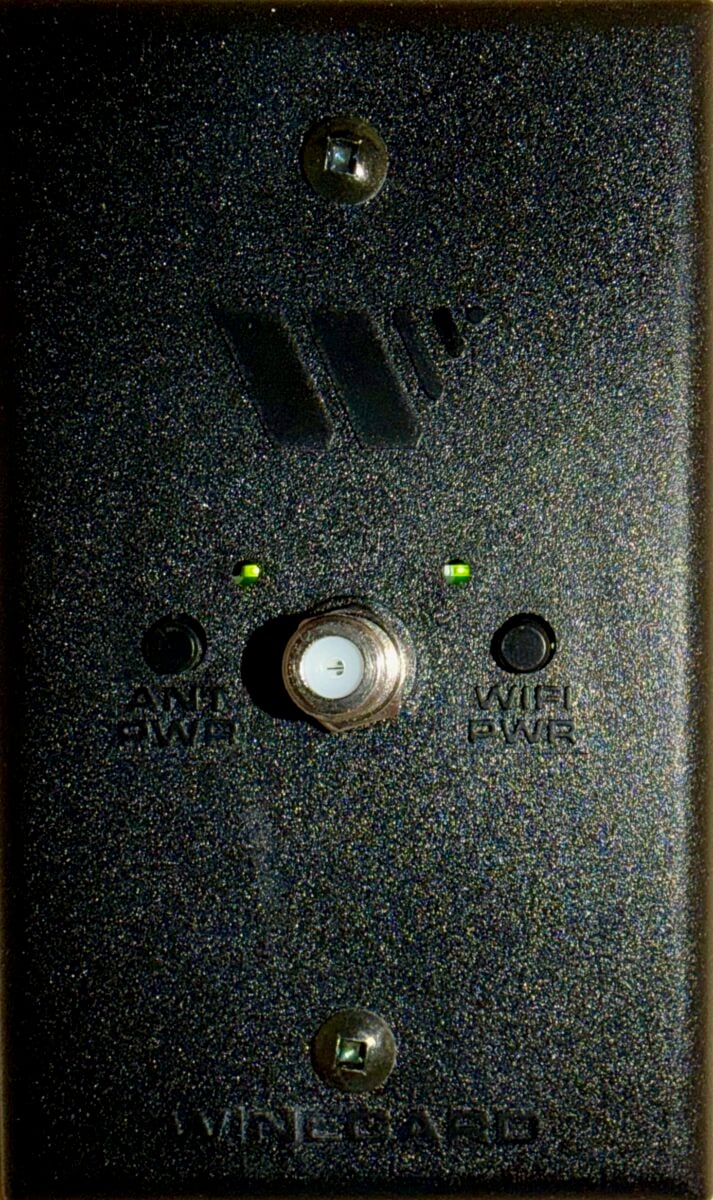
- Power on the antenna. Find the Winegard outlet cover inside your RV with two buttons: one for antenna power and one for Wi-Fi. Press both buttons. A green light should appear after pressing each one. You’ll see a coax / RG-6 cable port on the panel cover. You’ll use that port to connect an RG-6 cable to your TV if and when you connect to cable service at an RV park that offers local cable service. You’ll find the external port for campground cable service in the service bay of your LTV.
Note: If you also have a Winegard satellite TV antenna on the roof, you’ll see a separate power switch cover plate in your LTV. Ignore it—that’s a separate system we’ll talk about in another article.
- Connect to a Wi-Fi network. Make sure your laptop is connected to a Wi-Fi network that transmits a strong signal, such as your home network. You’ll need this connection to reach the Winegard setup page.
- Find your Winegard antenna. Open the Wi-Fi settings on your laptop and look for a network name like “Winegard_XXXX” (the “XXXX” are placeholders for the unique numbers for your antenna. You’ll find these numbers on a sticker on the cover of your Winegard manual). You’ll see two antennas in the setup menu: one operates at 2 GHz and the other at 5 GHz. Select one to connect.
Note: The 5 GHz wireless band delivers faster speeds than the 2 GHz band and features less network congestion. The 2 GHz band offers a broader range but can experience congestion because more devices operate in this band, leading to slower network speeds. - Invoke the setup page. Open any web browser (Chrome, Safari, Firefox, or Edge all work) and type this address: http://10.11.12.1 — then press Enter. A login page will appear. Enter the default username and password. You’ll find them on the cover of your antenna manual.
- Choose how you want to use the antenna. The setup page will show options for Wi-Fi or Cellular modes. Choose one. If you want to use cellular data services, you’ll need to climb up on the roof and put a SIM card from your preferred provider in the base of the antenna (more on this below). Or you can subscribe to the AT&T service, given that their card is already installed in the antenna. You can set the antenna to “auto”. This instructs the antenna to switch between cellular and Wi-Fi services. But we don’t recommend this approach because the modem can “hang” as it switches between functions and restarts, causing delays and frustration for you. We recommend choosing one mode and sticking with it. Our advice is that you log in to Winegard and change the type of function the antenna performs as you need it.
- Install updates. At the bottom of the setup page, you’ll see an option to download and install updates. Do this—Winegard releases firmware updates to the modem in the antenna every six months. A recent update sets the antenna up to handle Bluetooth communications. This provides owners the option to buy and install Winegards’ campground sensor pack.
- Change your network name and password. While you’re in the setup page, change the antenna name and password from the factory defaults to something you’ll remember. Doing so makes it easier to find your antenna when you’re in an RV park or rally where a sea of Winegard antennas may broadcast via their default Winegard name. Note: The setup page response can be slow. When you save a change, the antenna may take a while to respond. This is normal. The modem in the antenna is restarting. Wait for it to finish before making another change.
Adding a Cellular Data Card
To use this antenna for cellular Internet, you’ll need a SIM card from a cellular provider (T-Mobile, AT&T, Verizon, or others) with a data plan. The antenna comes with an AT&T SIM card installed, and you can choose to subscribe to their service, but you can replace their SIM card with one from your preferred provider.
To install this card, you must climb onto the roof. If you’re comfortable doing so, climb up to the roof and look at the base of the antenna. You’ll see a clear plastic plate between two cables that go into the base of the antenna. Remove the two Phillips head screws from the clear plastic plate at the base of the antenna. Remove the existing AT&T card and slide in your new one. It must be a “mini-SIM” size card (the medium-sized card). Replace the cover and screws.

You can leave the power on while you swap out SIM cards. You’ll see the name of your preferred provider in the setup menu once the antenna sees it.
What To Do If Something Goes Wrong
Many setups fail, especially if you try to do so from inside your LTV at the Winegard power plate cover. Follow the steps below to troubleshoot problems.
- If the setup page won’t load or freezes. Your laptop, tablet, or mobile phone probably switched back to your home Wi-Fi automatically. Check your Wi-Fi settings and reconnect to the Winegard network.
- The Winegard network doesn’t appear in your Wi-Fi list. You’ll need to reset the antenna. Do not press and hold the power buttons on the Winegard power plate cover inside your RV to reset the antenna—this rarely works. Instead, climb onto the roof and remove the clear plastic cover at the base of the antenna. Look for a small hole to the left of the SIM card slot—this is the reset button. Press and hold it with a paperclip or similar tool for two full minutes (time yourself—this is not an exaggeration). Release the button and wait three to five minutes. Then check your laptop’s Wi-Fi settings. The Winegard network should now appear in the setup menu.
The Ultimate Reset
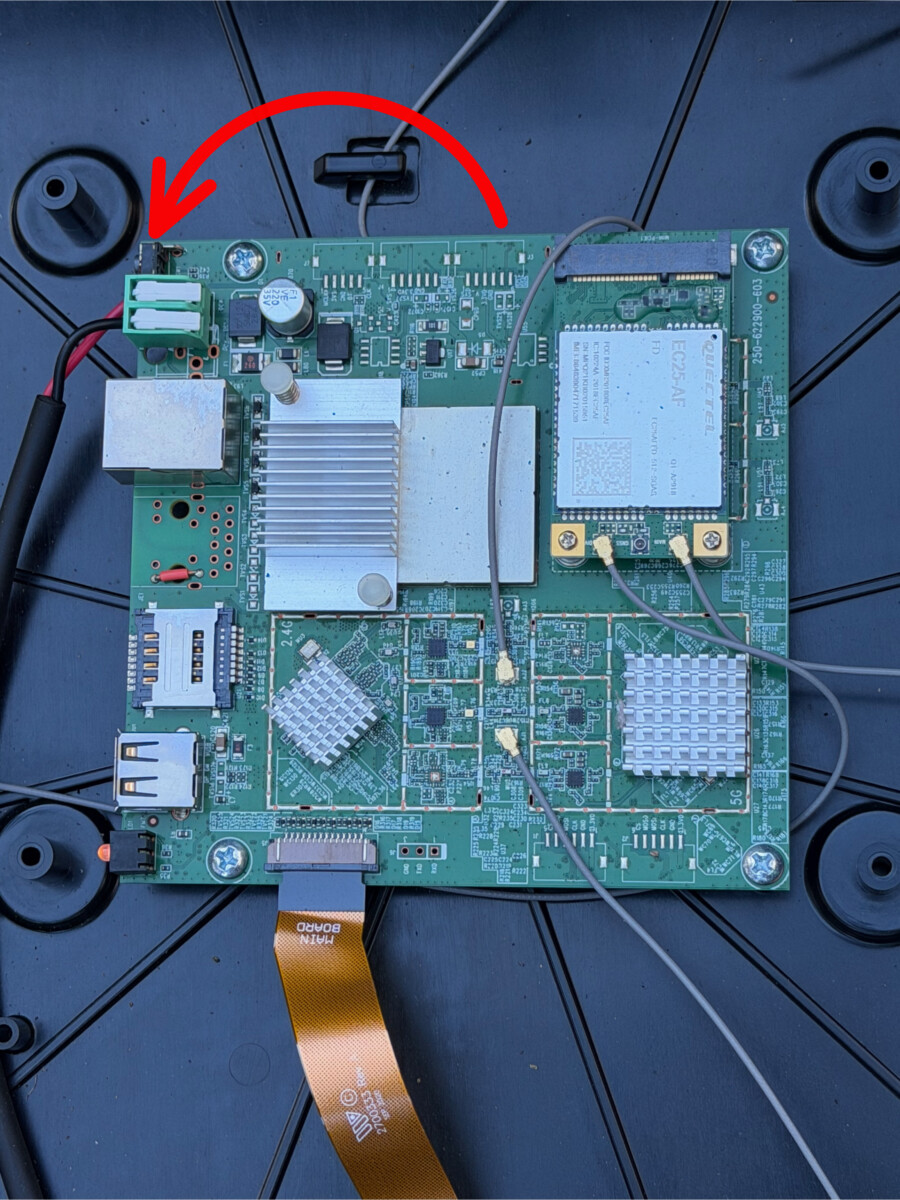
If you can’t find a reset button under the clear plastic baseplate of the antenna, you’ll need to remove the radome cover (four T20 Torx head screws) and press the reset button on the motherboard. Lift the radome slowly and carefully—a black wire connects the dome to the base. Don’t disconnect it. The radome contains antenna elements. The red arrow in the photo below displays the location of the reset button on the motherboard. Press and hold for two full minutes, then wait for a restart.
Tip: Take your mobile phone with you when you climb up on the roof. After the antenna modem restarts, you can access the setup page while up there, which will save trips up and down the ladder.
Tip: Speed up the setup with two devices. If you’re inside your LTV and the setup response is slow, log in to the Winegard site using two devices (such as a laptop and a mobile phone) at the same time. Make a change on one device, wait 30 seconds, then check the other device to see if the Winegard network resolves in the Wi-Fi settings. The antenna accepts changes faster than the screen shows on the first device. Switching between devices can reduce your wait time.
- Note: The reason this “trick” works is that the modem in the antenna is restarting to configure your settings, and the “handshake” between your first device and the network may not always display that the task is complete quickly. Using a second device’s browser may yield a faster response.
Speeds To Expect
The antenna can handle 150 megabits per second downloads on the cellular side of communications and up to 450 megabits per second on the Wi-Fi side of networks — plenty of speed for mobile communications. If you don’t get these speeds, a likely cause is a weak transmission source or signal interface by trees, buildings, or other obstacles.
For example, T-Mobile cellular coverage at our home is marginal. The Winegard ConnecT 2.0+ on our LTV delivers around 19 megabits down and 15 up. Twenty-five miles away in a nearby town, we get 60 down and 30 up. The results vary depending on location, cellular provider, your devices, how they are set up, and signal interference.
Free Television and Radio: A Backup You May Appreciate Someday
This antenna receives free OTA television broadcasts—the same signals you’d get with a rabbit ears antenna on an old TV. In an emergency when cellular, Internet, and satellite services are down, local TV and radio stations often keep broadcasting—a potential lifeline for you during a public service emergency.
For OTA TV service, this antenna works with both the current broadcast standard (ATSC 1.0) and the newer high-definition standard (ATSC 3.0), which is being rolled out across the United States. You won’t need a new antenna when broadcasters complete the transition.
- Note for travelers to Canada and Mexico: As of late 2025, neither country has adopted the ATSC 3.0 standard. Your antenna and TV will pick up signals without modification in both countries.
To watch OTA TV broadcasts, you rely on the tuner built into your RV’s television to translate the ATSC signals. The antenna just catches the signals—it doesn’t convert them for display by the TV. If you have an older TV that can’t translate the ATSC 3.0 signals, you can add an inexpensive external tuner or replace the TV. If you decide to replace your TV, keep in mind that newer TVs may require different cables than what’s installed in your LTV.
A Note About Newer Antennas
Winegard sells a newer Air 360+ antenna with 5G capability. You might wonder whether to replace your current antenna with this newer model.
The answer is that it’s not a simple swap out. According to Winegard, the new antenna requires different, proprietary wiring and only works with Winegard’s own Gateway router. You can’t just remove the old antenna and install the new one using existing cables. This is likely one reason LTV doesn’t offer this newer antenna as a factory option—it would require customers to buy additional Winegard-specific equipment.
However, Noto Bene! Winegard now offers a new Winegard Connect WF2-5G antenna that is a direct swap out for the 4G-LTE-WiFi antenna! Both models share the same physical radome design, dimensions, and roof-mounting method using four base feet secured with screws and sealant, allowing for a straightforward swap out without modifications to the mounting location or cables. But, be advised, this new 5G antenna does not offer OTA capability. If you want OTA service, you’ll need to install a separate external antenna. And, you’ll need to cap off the old RG-6 coax cable on the roof unless and until you decide to use it with a different antenna.
The Value Proposition
You own this antenna. You paid for it when you bought your LTV. Why not use it?
With a few minutes of setup, this antenna can reduce your mobile phone data use, improve your Internet and cellular reception on the road, and provide access to regional TV and radio station broadcasts. The setup isn’t as difficult as its reputation suggests—the trick is to use a web browser instead of the Winegard apps and to reset the antenna on the roof, when necessary, to succeed with the setup.
Up next: In our next antenna story, we’ll cover setting up the Winegard Roadtrip T4 Satellite Antenna for satellite television services.
Editor’s Note: The views, recommendations and opinions expressed in this article are those of the author(s) and are not necessarily those of Leisure Travel Vans.
This is a companion discussion topic for the original entry at https://leisurevans.com/blog/the-winegard-connect-2-0-antenna-a-hidden-asset-on-your-ltv-roof/